 Illustration by ChatGPT
SCREENish Help — Camera & Face check-in
“Camera malfunction” popup: what it means and how to fix it (Windows)
What this message means
If SCREENish showed you this popup:
Camera malfunction
Your camera appears to be malfunctioning and is not sending any video.
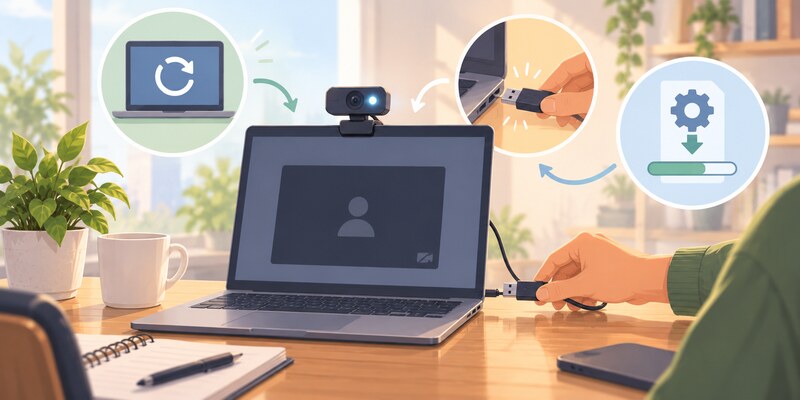
it means your camera turned on but is not sending any picture to the computer. The camera responded when the software switched it on — but then no video ever arrived.
This is a problem with the camera, its cable, or its driver (the small piece of Windows software that runs it). It is not a SCREENish setting, and there is nothing to configure inside SCREENish to fix it.
The good news: in most cases this fixes itself with a simple restart.
Step 1 — Confirm it yourself (takes 1 minute)
You don’t need a technician to find out whether the camera is really broken. Windows has a built-in Camera app that talks to the camera directly:
- Close SCREENish (right-click its icon in the tray, near the clock, and quit) so the two programs don’t compete for the camera during this test.
- Click Start, type Camera, and open the Camera app.
- Look at the picture.
What the result tells you:
Black screen, frozen image, endless spinner, or an error → the camera itself is the problem. Continue with the fix steps below.
You see yourself normally → the camera has recovered (this happens — some faults are temporary). Start SCREENish again and work normally. If the popup comes back later, the camera is failing intermittently — follow the steps below anyway, and mention it to your administrator if it keeps returning.
Remember this test — it is also your proof at the end. If the Windows Camera app can’t show video, no other program can either.
Step 2 — Fix it (easiest first)
Work through these in order. After each step, re-check with the Camera app from Step 1.
1. Restart the computer
Not just sign out — a full Start → Power → Restart. This resets the camera, its USB connection, and its driver in one go, and fixes the large majority of these cases. Do this first, before anything else.
2. Check for a privacy shutter or camera off-switch
Many laptops and webcams have a way to physically block the camera, and a blocked camera behaves exactly like this: it switches on, but sends no picture (or pure black).
- Look for a small sliding cover over the camera lens (or a sticker or tape someone put there).
- Many laptops have a camera on/off key on the keyboard — a key with a camera or crossed-out camera symbol (often F8 or F10). Press it (you may need to hold the Fn key at the same time) and re-test.
- Some webcams have a physical switch on the side or on the cable.
3. Check Windows camera permissions
- Open Start → Settings → Privacy & security → Camera.
- Make sure Camera access is On.
- Make sure Let apps access your camera is On.
- Make sure Let desktop apps access your camera (at the bottom) is On.
4. If it’s a USB (external) webcam — reconnect it
- Unplug it, wait 10 seconds, plug it back in.
- Try a different USB port — ideally one directly on the computer, not on a USB hub, docking station, or monitor.
- Check the cable isn’t pinched or damaged.
5. Reset the camera in Device Manager
This restarts just the camera’s driver:
- Right-click Start → Device Manager.
- Open the Cameras section (sometimes called Imaging devices).
- Right-click your camera → Disable device → confirm. Wait 5 seconds.
- Right-click it again → Enable device. Re-test with the Camera app.
If that didn’t help, do a full driver reinstall:
- Right-click the camera → Uninstall device (tick “delete the driver” if the checkbox is offered) → restart the computer. Windows reinstalls the camera automatically on startup.
6. Stop Windows from powering the camera off
Windows sometimes puts USB devices to sleep to save power, and some cameras don’t wake up properly — they stay on but stop sending video. This is a known cause of exactly this fault, especially on laptops:
- Right-click Start → Device Manager.
- Open Universal Serial Bus controllers.
- Double-click each USB Root Hub → Power Management tab → untick “Allow the computer to turn off this device to save power” → OK.
- If your camera under Cameras also has a Power Management tab, untick the same box there.
7. Update Windows and the camera driver
- Start → Settings → Windows Update → Check for updates — install everything, including anything under Optional updates → Driver updates.
- For laptops: the maker’s support app (Lenovo Vantage, Dell SupportAssist, HP Support Assistant, …) often has a newer camera driver than Windows Update.
8. Check your antivirus’s “webcam protection”
Some security programs (Kaspersky, Norton, ESET, Bitdefender, …) include a webcam-protection feature that can silently block video while the camera appears switched on. Open your antivirus, look for webcam protection / camera privacy, and either allow access for your applications or temporarily turn the feature off and re-test.
Still no picture after all of the above?
If you restarted the computer and worked through the steps and the Windows Camera app still shows no video, the camera hardware is most likely failing and needs to be replaced. That’s not a guess — the Camera-app test proves the fault is in the camera itself, on a program that has nothing to do with SCREENish.
- Laptop built-in camera: a repair is usually not worth it — a basic external USB webcam costs very little, plugs in, and works immediately.
- External webcam: if possible, test it on another computer first. If it fails there too, replace it.
Tell your administrator the outcome — they have already been notified automatically and will see the camera issue on their report until it’s resolved.
Note for administrators
- While an employee’s camera is in this state, your report shows a “Camera malfunction — please contact the employee” card for the affected minutes, so the gap is explained — it is not counted as the employee hiding from the camera.
- The employee sees the popup at most once every 30 minutes; it is intentionally not nagging.
- SCREENish keeps re-checking the camera automatically. The moment the camera works again, face verification resumes by itself — the employee does not need to restart SCREENish or change any setting.
- If the same machine shows the card repeatedly across days, plan a camera replacement — this popup only appears for faults on the employee’s machine that SCREENish cannot work around.
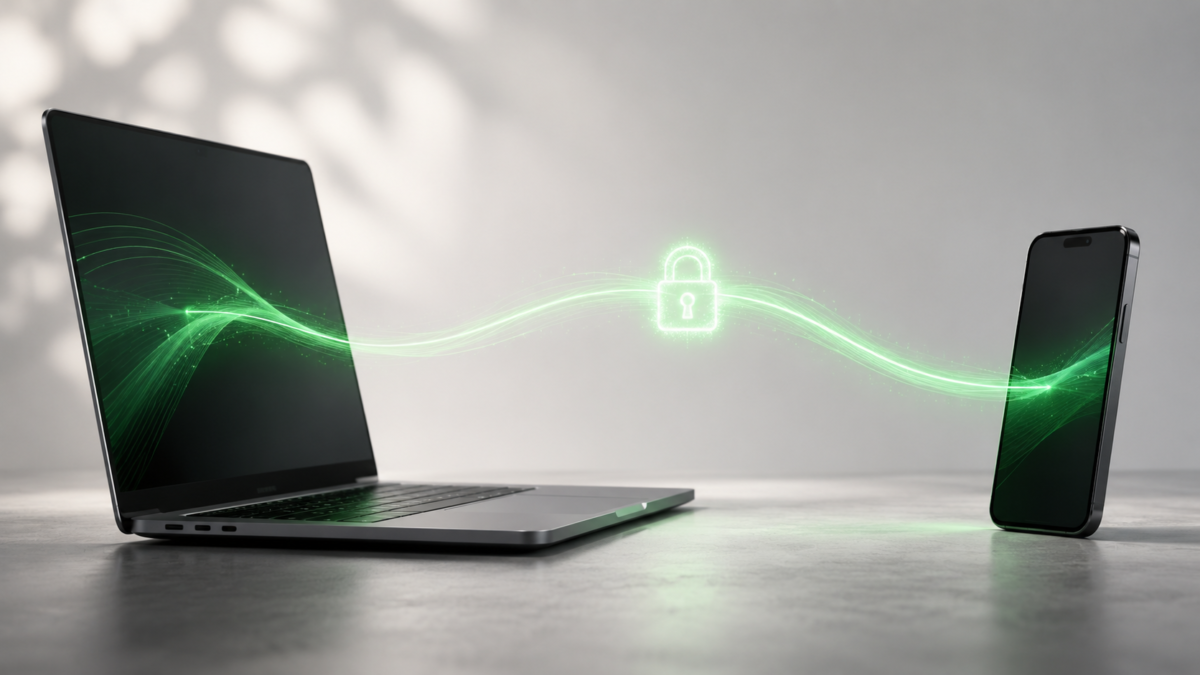 Illustration by ChatGPT
SCREENish Huddle: Your Team’s Conversations, Finally Yours
Your team already opens SCREENish every day to track time and stay on the same page. Now there’s a brand-new reason to keep it open. Meet SCREENish Huddle — a private place for your whole team to talk, call, and share, built right into the window you already use.
Look for the new 📞 Huddle tab. Behind it you’ll find a team directory, one-to-one chat, audio and video calls, and direct file sharing — all in one spot. And here’s the promise we want to lead with: this is a secure team chat app designed so that your company’s conversations stay your company’s business. There’s nothing new to install and no separate account to create. If you have SCREENish, you have Huddle.
Everyone on your team, one click away
No more hunting through email addresses or trying to remember someone’s username. Open Huddle and a simple team directory shows exactly who you can reach. Message them, call them, or start a video — all from the same list.
Just as important is who can’t show up there. Only people verified as being on your team can message or call you. There’s no inviting the whole internet, no strangers wandering in, and no spam from accounts you’ve never heard of. This is a private team messaging app built for real coworkers, not for the outside world.
Chat one-to-one without leaving a trail
Sometimes you just need a quick answer. Huddle lets you send text messages straight to a teammate, right inside SCREENish — perfect for the day-to-day questions you’d rather not scatter across email threads or some outside app.
Here’s what makes it a genuinely private business messaging app. Messages are delivered while you’re both online. Our server simply passes each one along and then forgets it — so there’s no growing pile of chat history sitting on a server somewhere for anyone to leak, hand over, or mine. The only copy of your conversation history lives on your own computer, and it’s locked to that computer. Copy that history file to another machine and it simply won’t open. Your words stay with you.
Text chat in Huddle is always one-to-one — a real, private conversation between two people.
Jump on a call, face to face
When a call beats typing, start one in a couple of clicks. Reach a teammate by audio or video, or gather a small group — up to four people — for a quick huddle to talk something through together.
This is where private video calls for teams really shine. Whenever your network allows, your call travels straight from one person’s device to the other — device to device, not parked on some company’s cloud. It’s scrambled the entire way, so no one in the middle can watch or listen in. And on the rare occasion a strict office firewall forces a call to take a detour, the point it passes through still can’t make sense of a thing — your conversation stays unreadable to it.
The call also runs in its own separate space that shuts down the moment you close the app. Nothing lingers.
Send files straight to a teammate, and nowhere else
Need to hand someone a document, an image, or a report? Huddle’s secure file sharing for teams is the strictest part of the whole experience.
Files travel straight from your device to your teammate’s device — hand to hand. They never pass through, and never sit on, any server. And if a truly private, direct connection can’t be made, Huddle doesn’t quietly reroute your file somewhere you didn’t choose. It cancels the transfer and tells you clearly. Privacy always wins over convenience. Anything you receive lands neatly in your Downloads folder, right where you’d expect it.
It all lives in one window
Chat, calls, and file sharing sit together under the Huddle tab, so there’s no bouncing between apps all day. Because it’s part of SCREENish, your team stays in the tool they already know. One login, one window, one place for team communication — that’s the whole idea behind a truly built-in team communication tool.
How SCREENish Huddle keeps your team’s conversations private
We think about privacy the way you do — in plain English. Here’s the honest picture of how we help you keep team conversations private:
- Everything runs on our own equipment. Huddle doesn’t hand your team’s calls, chats, or files to Zoom, Slack, Microsoft, or any other outside service. It all stays on infrastructure that SCREENish runs itself. This is genuinely self-hosted team chat — your talk never leaves hands you trust.
- Our server is a switchboard operator that keeps no record. Picture an old-fashioned operator who connects two people and then forgets they ever spoke. That’s our server: it introduces two teammates, passes things along, and saves nothing — no messages, no files, no recordings. Your calls and files are scrambled so the operator couldn’t make sense of them anyway, and your chat messages are gone from our side the instant they’re delivered.
- Nothing sensitive is ever stored. No saved messages, no stored files, no call recordings sitting on a server anywhere. There’s no online history to be leaked, hacked, handed over, or mined — because it was never kept in the first place.
- Your chat history stays on your computer, locked to it. Move that file to another machine and it won’t open. It belongs to one device: yours.
- Calls go straight between the people talking, scrambled the whole way — and even a firewall’s detour point can’t see or hear anything.
- Files go device to device and never touch a server — and a transfer that can’t stay private is stopped, not rerouted.
- Everything travels over secure, protected connections — the same kind of protection you rely on when you log into your bank’s website.
That’s what makes Huddle secure team communication software you can actually explain to your team without a technical manual.
How it’s different
Slack, Zoom, and Teams keep your chats, files, and recordings on their cloud, run by their company. Huddle keeps nothing sensitive on a server at all — your history lives on your own computer, and your files pass straight from one teammate to the next.
The big platforms are built to remember everything forever. Huddle is built to remember as little as possible. There’s no third party sitting in the middle of your team’s business, no server-side history waiting to be exposed, and no extra app to buy, per-seat chat fee, or separate login to juggle. It’s the private version of team chat, calls, and file sharing — your calls scrambled end to end, your chat kept off our servers entirely — already inside the app your team opens every day.
Frequently asked questions
Is SCREENish Huddle really private?
Yes. Your messages, calls, and files run on SCREENish’s own servers, never through Zoom, Slack, or other outside services, and nothing sensitive is ever stored where it could leak.
Where are my chat messages saved?
Only on your own computer. Our server passes each message along and forgets it, so there’s no chat history sitting on a server. The history saved on your device is locked to that device, so copying the file to another computer leaves it unreadable.
Are my calls and video secure?
Yes. Calls are scrambled and sent straight from one person’s device to another whenever possible. In the rare case a strict company firewall has to reroute them, the go-between still can’t see or hear anything.
What happens to files I send?
Files go directly from your device to your teammate’s and never touch a server. If a private direct connection can’t be made, the transfer is cancelled with a clear message rather than quietly rerouted. Files you receive land in your Downloads folder.
Who can message or call me?
Only people verified as members of your own team. Outsiders and strangers can’t reach you through Huddle.
How many people can join, and do I need to install anything?
Text chat is one-to-one, and a call can include a small group of up to four people. There’s nothing new to install — Huddle is built into SCREENish, so just update the app and open the Huddle tab.
Turn on Huddle and start talking privately today
Getting started takes seconds. Update SCREENish, open the 📞 Huddle tab, and your team directory is right there waiting. Send your first message, start a call, or share a file — all in a few clicks.
If you’ve been looking for a team chat app for small business that respects your privacy by design, this is it. Give your team a place to talk freely and share freely, knowing the conversation stays yours. Open Huddle and start talking privately today.
By SCREENish Team
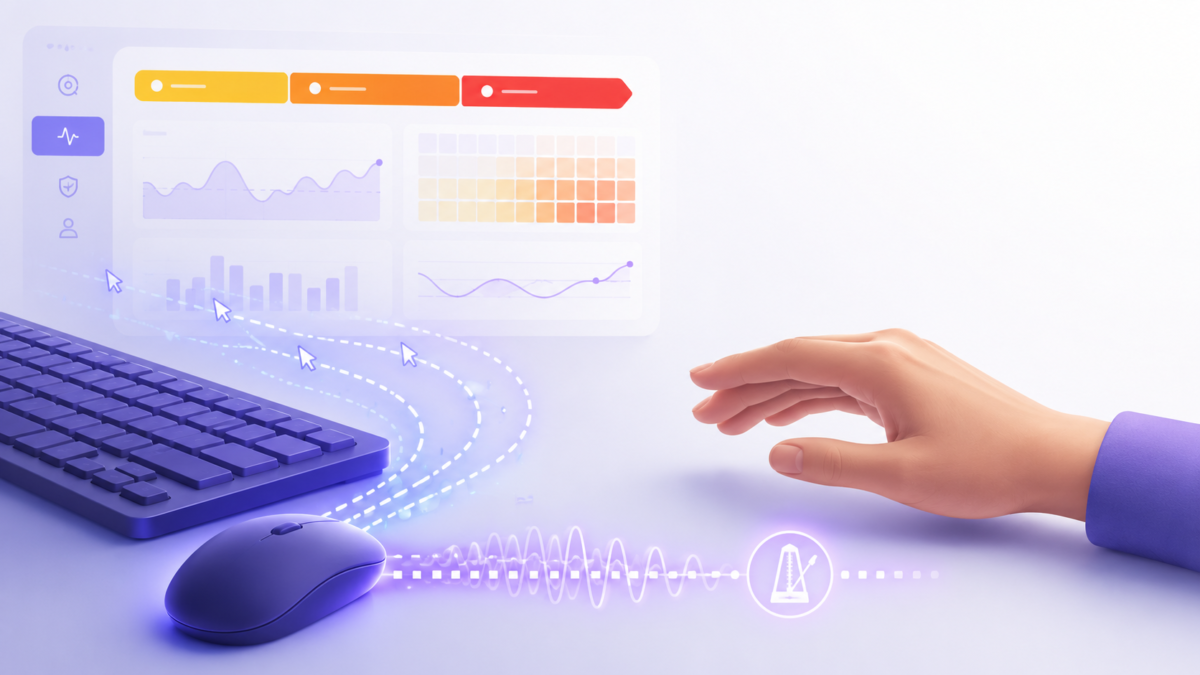 Illustration by ChatGPT
SCREENish can now flag injected input — mouse movements, clicks, and keystrokes generated by software rather than a human hand. But a flag is not a verdict. This guide explains how to read SCREENish’s injected‑activity signals, what every possible case means, how SCREENish grades severity, and — critically — the innocent explanations you must rule out first.
What is injected (synthetic) input?
Injected input, or synthetic input, is any mouse or keyboard event produced by a program instead of a physical device — think mouse jigglers, auto‑clickers, keyboard macros, and HID emulators. Operating systems can often tag whether an event came from real hardware or from software, and that tag is what powers injected‑activity detection in SCREENish.
Why it matters: injected input can inflate “active” time in productivity and time‑tracking software — but it’s also produced by many legitimate tools. Reading the signals correctly is the difference between a fair review and a false accusation.
SCREENish’s golden rule: evidence, not an accusation
Every SCREENish activity‑review item is a review request, not a determination of misconduct. Findings are visible to managers only — hidden from the employee, and each is a lead to verify with screenshots and context, never proof. The rest of this guide is written in that spirit.
How to read each injected‑activity signal (all cases)
SCREENish “stacks” independent signals: one alone is weak; several together are strong. Here is every signal family and how to read it.
1. Injected mouse / keyboard events (the core signal)
- What you’ll see:
injected keystrokes 345, or injected‑mouse ratio 1 (92 events).
- How to read it: the count or ratio of software‑generated events versus real events. A high injected‑to‑real ratio is the most direct sign of automation.
- Edge case: on Linux, the OS often can’t confirm injection (
injection detection not supported). Its absence there isn’t an all‑clear — SCREENish leans on the behavioral signals below.
2. Single‑channel activity (mouse‑only or keyboard‑only)
- What you’ll see: heavy mouse movement/clicks while keystrokes stay near zero for a long stretch.
- How to read it: real knowledge work mixes typing and mousing. A long mouse‑only window is a classic auto‑clicker or jiggler fingerprint; a long keyboard‑only window points to an auto‑typer.
3. Robotic timing (coefficient of variation, “CV”)
- What you’ll see:
robotic timing: actions CV 0.033.
- How to read it: CV = coefficient of variation = standard deviation ÷ mean — how uniform the activity is minute‑to‑minute. Humans are bursty (high CV); a machine emits near‑identical activity every interval (CV near 0). A very low CV = metronomic, machine‑like regularity.
4. Static screen (perceptual‑hash diff)
- What you’ll see:
screen was 93% static across the window.
- How to read it: the screenshots barely changed while “activity” kept accruing. A high static‑screen percentage plus ongoing input strongly suggests the input wasn’t doing real work.
5. Idle contradiction (activity while idle)
- What you’ll see: input events — especially injected ones — during periods SCREENish also marks idle.
- How to read it: genuine work and “idle” shouldn’t coexist. Activity during idle, or injection during idle, suggests something is faking presence.
6. Off‑baseline behavior
- What you’ll see: a window outside the worker’s own typical hours or usual mouse/keyboard mix.
- How to read it: SCREENish compares against that person’s own baseline, not a global average. It adds weight when it corroborates other signals; alone it’s just “unusual,” not “fake.”
How SCREENish grades injected‑activity severity
SCREENish colors each worklog banner by the highest grade in view — amber → orange → red — so you read severity at a glance. Severity is evidence strength minus benign explanation:
| Grade |
Banner color |
Plain meaning |
What to do |
| Watch |
(silent) |
One weak signal, or a benign cause present |
Note it; no action |
| Low — “worth a glance” |
Amber |
Two independent signals |
Skim the screenshots |
| Elevated — “likely” |
Orange |
Three signals incl. a reliable one |
Review properly |
| High — “strong indicators” |
Red |
The full stack, no benign explanation |
Prioritize the review |
Injected‑activity patterns SCREENish labels
- Mouse jiggler — keeps the cursor twitching to appear “present.”
- Auto‑clicker — repeats clicks/moves on a fixed cadence (low CV, mouse‑only).
- Auto‑typer / macro — replays keystrokes; keyboard‑heavy, robotic timing.
- Possible HID emulator — hardware that injects input the OS may see as “real” (behavioral‑only, low confidence).
- Mixed / inconclusive — signals disagree; treat cautiously.
Benign explanations you MUST rule out (false positives)
This is the most important section. Synthetic input is frequently legitimate, and SCREENish prints a benign‑cause note whenever it detects one. Before contacting anyone, rule out:
- Remote desktop / remote help — RDP, TeamViewer, AnyDesk, Chrome Remote Desktop, or input‑sharing. The receiving PC reports all incoming input as injected, so a helper — or an employee working from home into an office PC — looks exactly like a jiggler. This is the #1 false positive.
- Password managers — autofill injects keystrokes.
- Macros & text expanders — legitimate productivity tools that inject input by design.
- Accessibility tools — on‑screen keyboards, voice control, switch access, and dictation all generate synthetic events.
- OS limitation — on Linux the injection signal may be unavailable; its absence proves neither innocence nor guilt.
If any is present, SCREENish caps the grade and records the reason — and so should you.
How to review a flagged window in SCREENish (step‑by‑step)
- Open the worker’s worklog — a colored banner marks the flagged sessions.
- Read the stacked signals — how many fired, and are any reliable (injected ratio, or static‑screen + robotic timing)?
- Look at the screenshots across the window — real work, or a frozen screen?
- Check the exculpation line — SCREENish flags an active remote session or benign tool for you.
- Compare to the person’s baseline — genuinely out of character?
- Choose Confirm, Dismiss (false positive), or Need more info — and note why. Your dismissals teach SCREENish to stop re‑flagging the same benign pattern.
Best practices for fair injected‑activity review
- Never auto‑penalize on a signal — SCREENish keeps a human in the loop by design.
- Lead with a conversation, not an accusation.
- Weight reliable signals over circumstantial ones.
- Document the benign‑cause check every time.
- Employees can’t see these flags, which puts the responsibility for fairness on you.
FAQ
Is injected input always cheating? No. Remote desktop, password managers, macros, and accessibility tools all produce it legitimately — which is why SCREENish frames findings as leads, not verdicts.
What does “CV” mean in a SCREENish signal? Coefficient of variation — how uniform the activity is. Near‑zero means machine‑like regularity.
Can SCREENish detect a mouse jiggler? Yes — via injected‑event tags, mouse‑only activity, robotic timing, and a static screen, especially when several signals agree.
Does remote work cause false positives? Often. RDP/TeamViewer/AnyDesk make legitimate remote work look synthetic, so SCREENish shows a remote‑session caution — always check it first.
Conclusion
Reading injected‑activity signals well means combining several independent clues, grading by evidence strength, and deliberately ruling out the many benign causes of synthetic input. SCREENish does the detection and the fairness safeguards; you bring the judgment. Do that, and each report becomes what it’s meant to be — a fair starting point for a conversation, not a verdict.
Want to see injected‑activity review in your own dashboard? Open any worker’s worklog in SCREENish and look for the colored activity‑review banner.


