
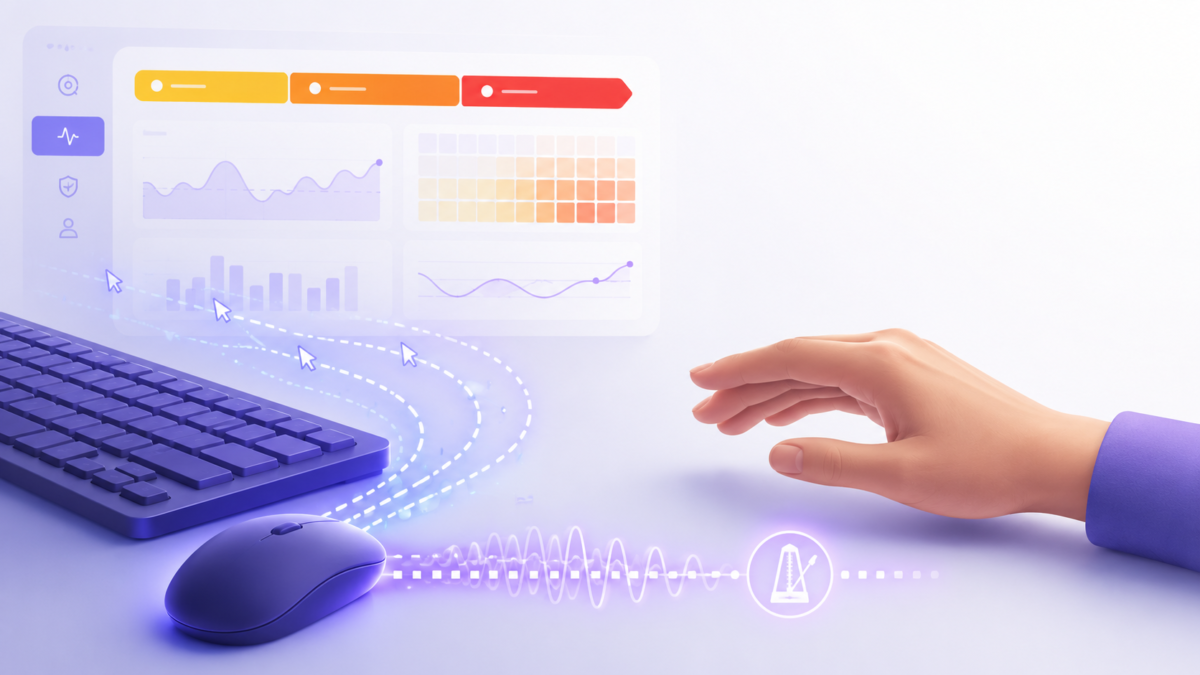
SCREENish can now flag injected input — mouse movements, clicks, and keystrokes generated by software rather than a human hand. But a flag is not a verdict. This guide explains how to read SCREENish’s injected‑activity signals, what every possible case means, how SCREENish grades severity, and — critically — the innocent explanations you must rule out first.
What is injected (synthetic) input?
Injected input, or synthetic input, is any mouse or keyboard event produced by a program instead of a physical device — think mouse jigglers, auto‑clickers, keyboard macros, and HID emulators. Operating systems can often tag whether an event came from real hardware or from software, and that tag is what powers injected‑activity detection in SCREENish.
Why it matters: injected input can inflate “active” time in productivity and time‑tracking software — but it’s also produced by many legitimate tools. Reading the signals correctly is the difference between a fair review and a false accusation.
SCREENish’s golden rule: evidence, not an accusation
Every SCREENish activity‑review item is a review request, not a determination of misconduct. Findings are visible to managers only — hidden from the employee, and each is a lead to verify with screenshots and context, never proof. The rest of this guide is written in that spirit.
How to read each injected‑activity signal (all cases)
SCREENish “stacks” independent signals: one alone is weak; several together are strong. Here is every signal family and how to read it.
1. Injected mouse / keyboard events (the core signal)
- What you’ll see:
injected keystrokes 345, orinjected‑mouse ratio 1 (92 events). - How to read it: the count or ratio of software‑generated events versus real events. A high injected‑to‑real ratio is the most direct sign of automation.
- Edge case: on Linux, the OS often can’t confirm injection (
injection detection not supported). Its absence there isn’t an all‑clear — SCREENish leans on the behavioral signals below.
2. Single‑channel activity (mouse‑only or keyboard‑only)
- What you’ll see: heavy mouse movement/clicks while keystrokes stay near zero for a long stretch.
- How to read it: real knowledge work mixes typing and mousing. A long mouse‑only window is a classic auto‑clicker or jiggler fingerprint; a long keyboard‑only window points to an auto‑typer.
3. Robotic timing (coefficient of variation, “CV”)
- What you’ll see:
robotic timing: actions CV 0.033. - How to read it: CV = coefficient of variation = standard deviation ÷ mean — how uniform the activity is minute‑to‑minute. Humans are bursty (high CV); a machine emits near‑identical activity every interval (CV near 0). A very low CV = metronomic, machine‑like regularity.
4. Static screen (perceptual‑hash diff)
- What you’ll see:
screen was 93% static across the window. - How to read it: the screenshots barely changed while “activity” kept accruing. A high static‑screen percentage plus ongoing input strongly suggests the input wasn’t doing real work.
5. Idle contradiction (activity while idle)
- What you’ll see: input events — especially injected ones — during periods SCREENish also marks idle.
- How to read it: genuine work and “idle” shouldn’t coexist. Activity during idle, or injection during idle, suggests something is faking presence.
6. Off‑baseline behavior
- What you’ll see: a window outside the worker’s own typical hours or usual mouse/keyboard mix.
- How to read it: SCREENish compares against that person’s own baseline, not a global average. It adds weight when it corroborates other signals; alone it’s just “unusual,” not “fake.”
How SCREENish grades injected‑activity severity
SCREENish colors each worklog banner by the highest grade in view — amber → orange → red — so you read severity at a glance. Severity is evidence strength minus benign explanation:
| Grade | Banner color | Plain meaning | What to do |
|---|---|---|---|
| Watch | (silent) | One weak signal, or a benign cause present | Note it; no action |
| Low — “worth a glance” | Amber | Two independent signals | Skim the screenshots |
| Elevated — “likely” | Orange | Three signals incl. a reliable one | Review properly |
| High — “strong indicators” | Red | The full stack, no benign explanation | Prioritize the review |
Injected‑activity patterns SCREENish labels
- Mouse jiggler — keeps the cursor twitching to appear “present.”
- Auto‑clicker — repeats clicks/moves on a fixed cadence (low CV, mouse‑only).
- Auto‑typer / macro — replays keystrokes; keyboard‑heavy, robotic timing.
- Possible HID emulator — hardware that injects input the OS may see as “real” (behavioral‑only, low confidence).
- Mixed / inconclusive — signals disagree; treat cautiously.
Benign explanations you MUST rule out (false positives)
This is the most important section. Synthetic input is frequently legitimate, and SCREENish prints a benign‑cause note whenever it detects one. Before contacting anyone, rule out:
- Remote desktop / remote help — RDP, TeamViewer, AnyDesk, Chrome Remote Desktop, or input‑sharing. The receiving PC reports all incoming input as injected, so a helper — or an employee working from home into an office PC — looks exactly like a jiggler. This is the #1 false positive.
- Password managers — autofill injects keystrokes.
- Macros & text expanders — legitimate productivity tools that inject input by design.
- Accessibility tools — on‑screen keyboards, voice control, switch access, and dictation all generate synthetic events.
- OS limitation — on Linux the injection signal may be unavailable; its absence proves neither innocence nor guilt.
If any is present, SCREENish caps the grade and records the reason — and so should you.
How to review a flagged window in SCREENish (step‑by‑step)
- Open the worker’s worklog — a colored banner marks the flagged sessions.
- Read the stacked signals — how many fired, and are any reliable (injected ratio, or static‑screen + robotic timing)?
- Look at the screenshots across the window — real work, or a frozen screen?
- Check the exculpation line — SCREENish flags an active remote session or benign tool for you.
- Compare to the person’s baseline — genuinely out of character?
- Choose Confirm, Dismiss (false positive), or Need more info — and note why. Your dismissals teach SCREENish to stop re‑flagging the same benign pattern.
Best practices for fair injected‑activity review
- Never auto‑penalize on a signal — SCREENish keeps a human in the loop by design.
- Lead with a conversation, not an accusation.
- Weight reliable signals over circumstantial ones.
- Document the benign‑cause check every time.
- Employees can’t see these flags, which puts the responsibility for fairness on you.
FAQ
Is injected input always cheating? No. Remote desktop, password managers, macros, and accessibility tools all produce it legitimately — which is why SCREENish frames findings as leads, not verdicts.
What does “CV” mean in a SCREENish signal? Coefficient of variation — how uniform the activity is. Near‑zero means machine‑like regularity.
Can SCREENish detect a mouse jiggler? Yes — via injected‑event tags, mouse‑only activity, robotic timing, and a static screen, especially when several signals agree.
Does remote work cause false positives? Often. RDP/TeamViewer/AnyDesk make legitimate remote work look synthetic, so SCREENish shows a remote‑session caution — always check it first.
Conclusion
Reading injected‑activity signals well means combining several independent clues, grading by evidence strength, and deliberately ruling out the many benign causes of synthetic input. SCREENish does the detection and the fairness safeguards; you bring the judgment. Do that, and each report becomes what it’s meant to be — a fair starting point for a conversation, not a verdict.
Want to see injected‑activity review in your own dashboard? Open any worker’s worklog in SCREENish and look for the colored activity‑review banner.


